 PhotoMigrator
Move your photo library.
Keep every memory.
Migrate photos, videos and albums between Google Photos, Synology Photos, Immich, NextCloud and local folders, and turn messy Google or iCloud Takeout exports into a clean library with the right dates.
$ PhotoMigrator --source=synology-photos-1 \
    --target=immich-photos-1
PULL  Album '2019 - Summer Trip' downloaded
PUSH  Album '2019 - Summer Trip' created
PUSH  IMG_4821.HEIC uploaded
WARN  VID_0193.MOV queued for retry
PUSH  VID_0193.MOV recovered on retry
Works with the services you already use
Connect up to three accounts per service and move your library in any direction, including between two accounts of the same service.
Google Photos
Upload your library and albums to Google Photos. To bring photos out of Google, use your Google Takeout export.
Synology Photos
Your NAS library, with 2-step verification support and up to three accounts.
Immich
Self-hosted photos with people labels from your Takeout, burst stacks and visual duplicate detection.
NextCloud Photos
Folder-based albums on your own NextCloud, with parallel uploads and downloads.
Google Takeout
The export of your Google Photos account, fixed and organized before it goes anywhere else.
iCloud Takeout
Apple's privacy export of iCloud Photos, with dates restored and albums and Memories rebuilt.
Local folders
Any folder on your disk or NAS, used as a source, a target or a library you manage like a cloud service.
Any direction
Synology to Immich, Takeout to NextCloud, Immich to a local folder… pick a source and a target and run.
From a messy export to a tidy library
Every task shows only the options it needs, explains each one in plain language and shows the exact command before anything runs.
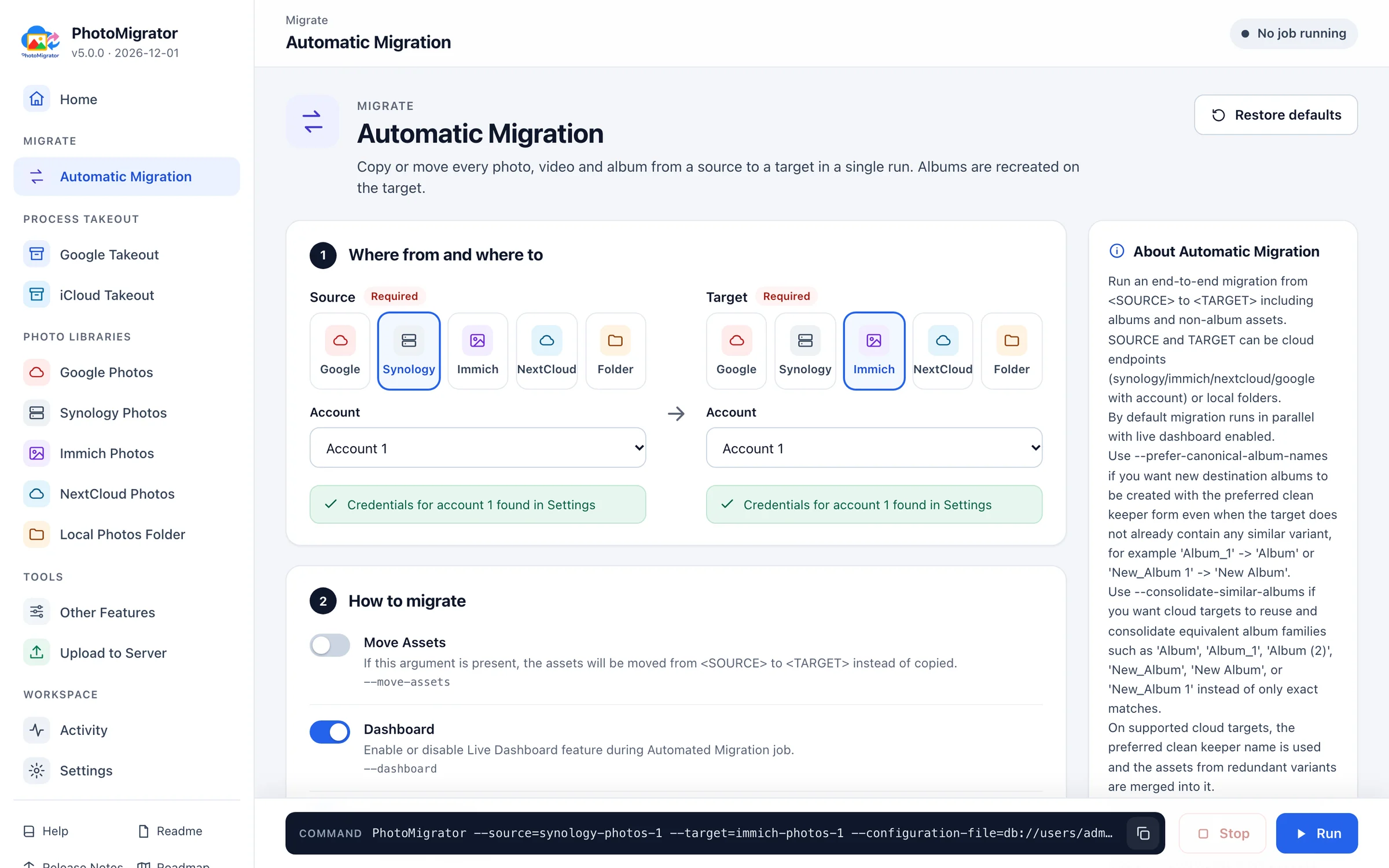
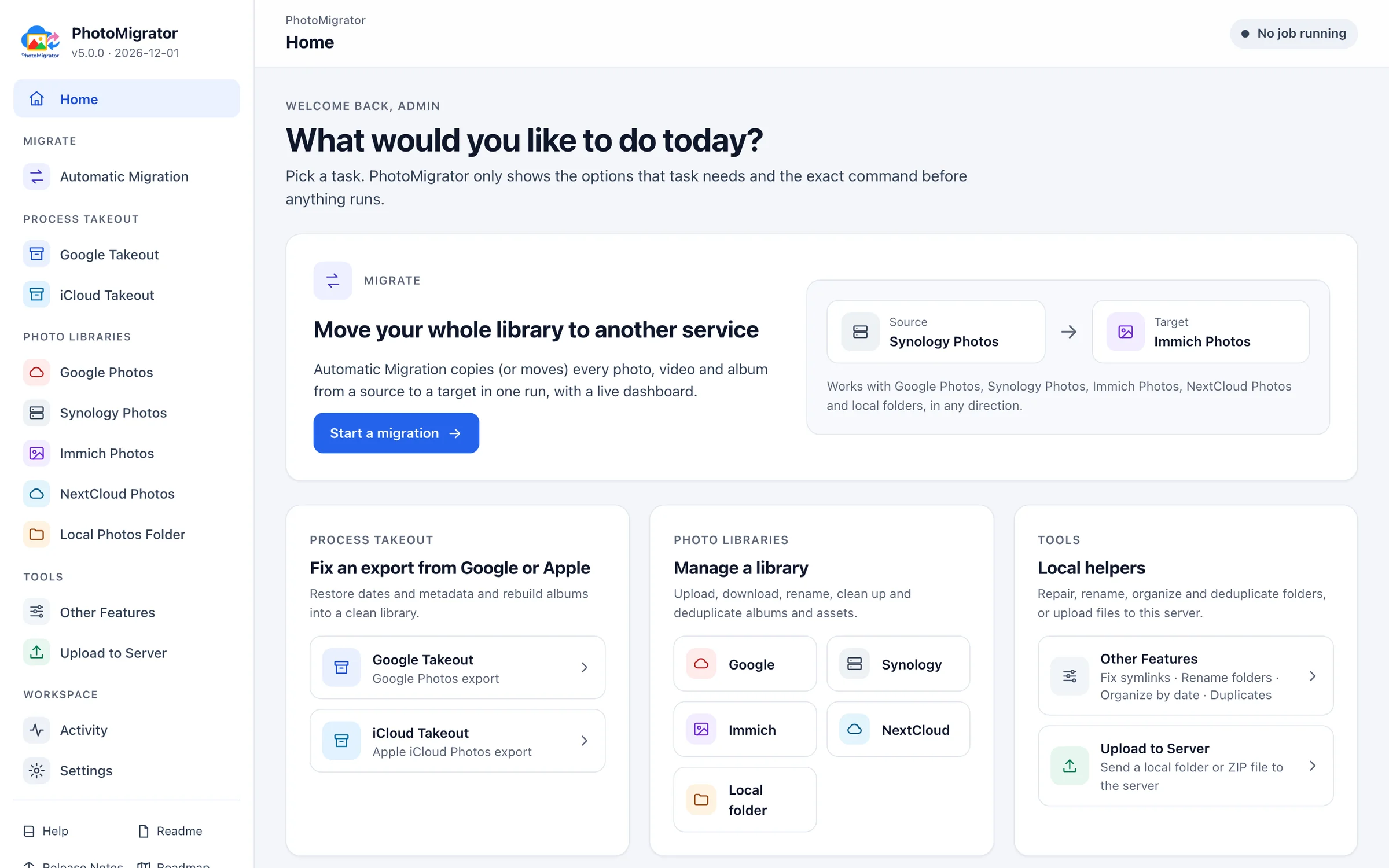
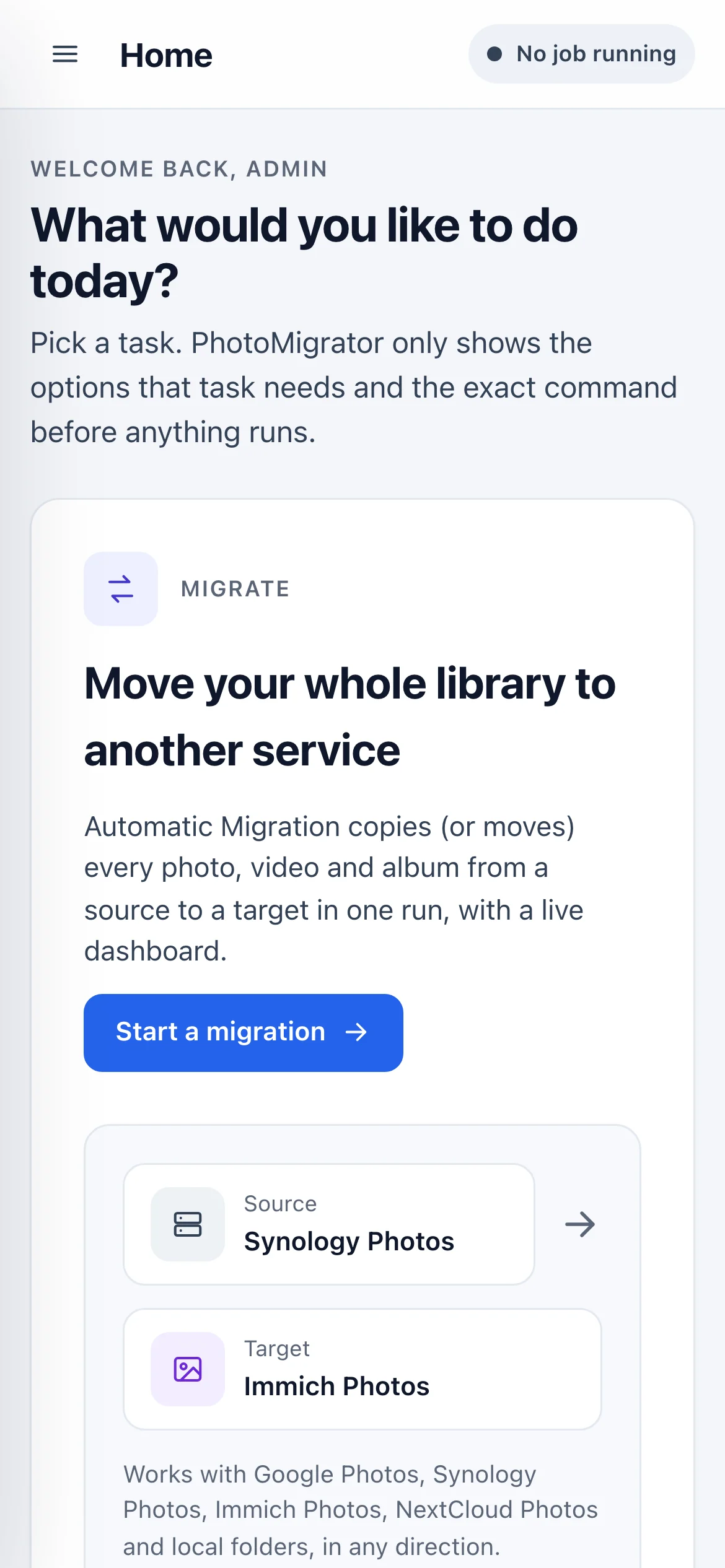
Your whole library, moved in one run
Choose where your photos are and where they should go. PhotoMigrator downloads and uploads in parallel, recreates every album on the target and shows a live dashboard while it works.
- Copy or move assets, with albums and non-album photos
- Retries, upload size limits and timeouts for big libraries
- Filter by date, type, country, city or person
- Optional album name clean-up and consolidation on the target
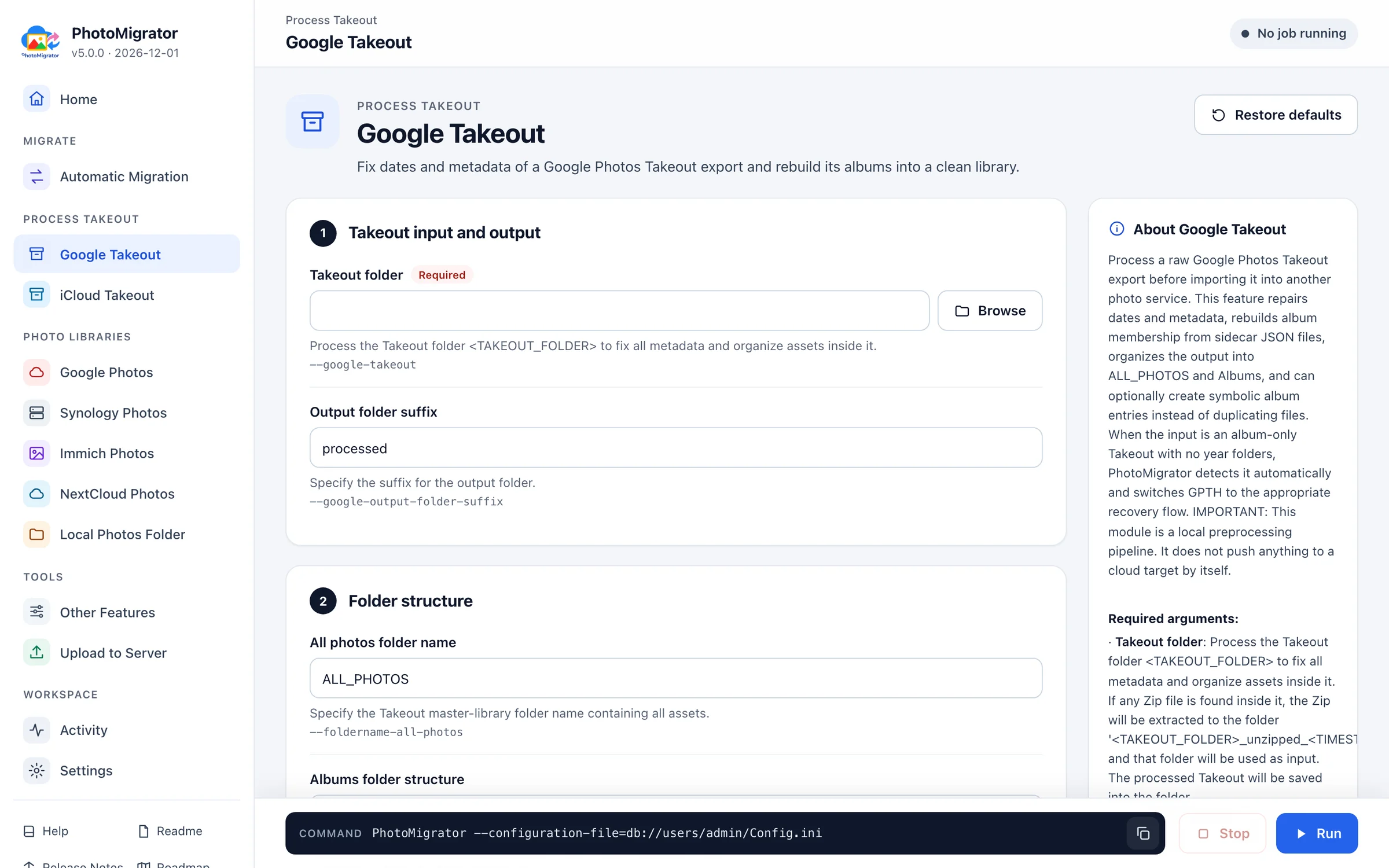
Exports that make sense again
Takeout exports scatter dates and albums into side files. PhotoMigrator reads them, writes the real date, GPS and camera data back into every photo and rebuilds your albums.
- Dates and locations restored from JSON sidecars or Photo Details.csv
- Albums as links to one copy of each photo, so nothing is duplicated
- Year or year/month folders, duplicate removal and dated album names
- People labels kept for Immich, iCloud Memories rebuilt as albums
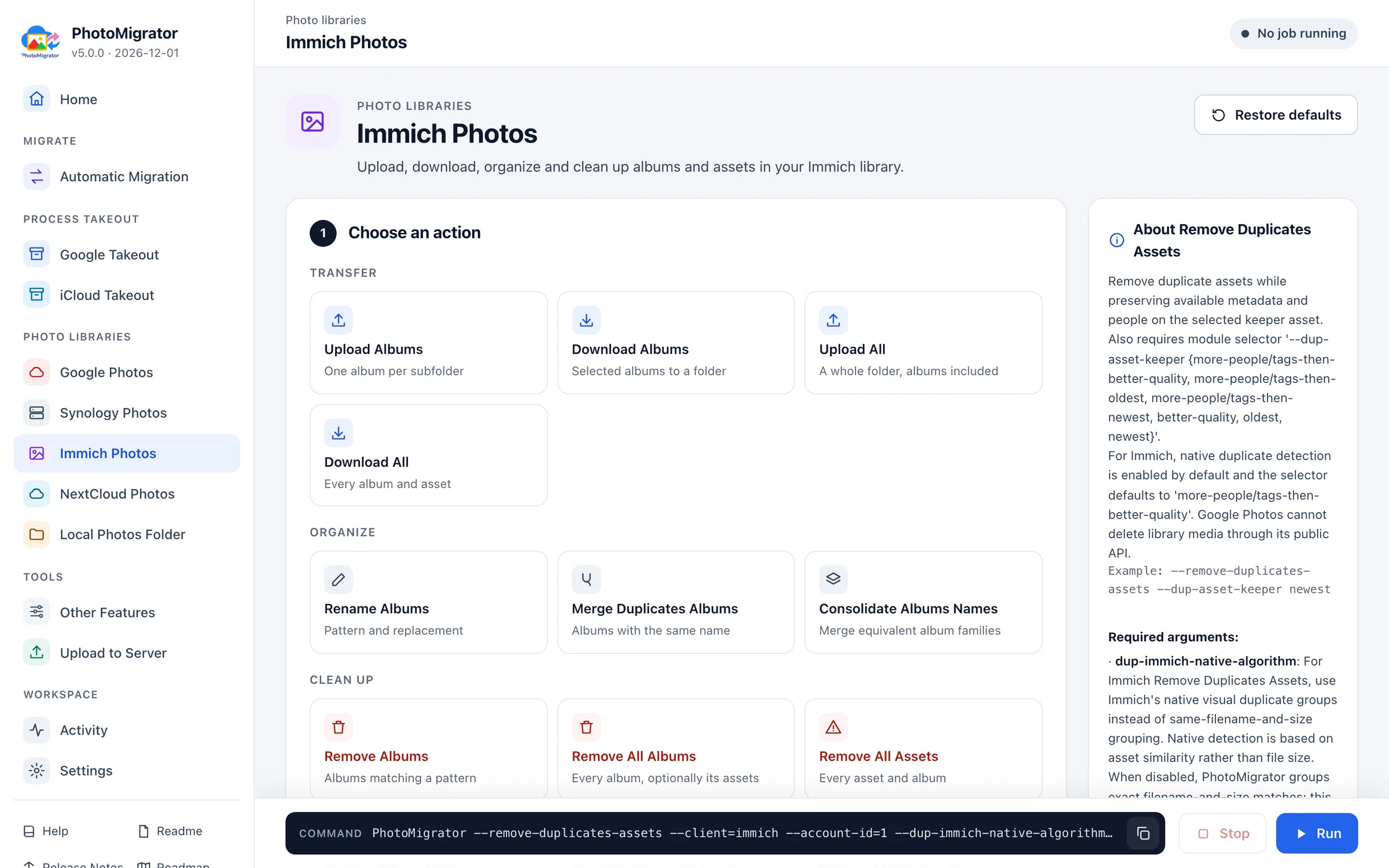
Tidy up any library, safely
Pick an action from a visual menu: upload or download albums, rename them by pattern, merge duplicates or clean up empty albums. Destructive actions are clearly marked and ask before they run.
- Upload and download albums or the whole library
- Rename albums with text, wildcards or regular expressions
- Remove duplicate assets, keeping the best copy and its people
- Merge, consolidate and clean up albums
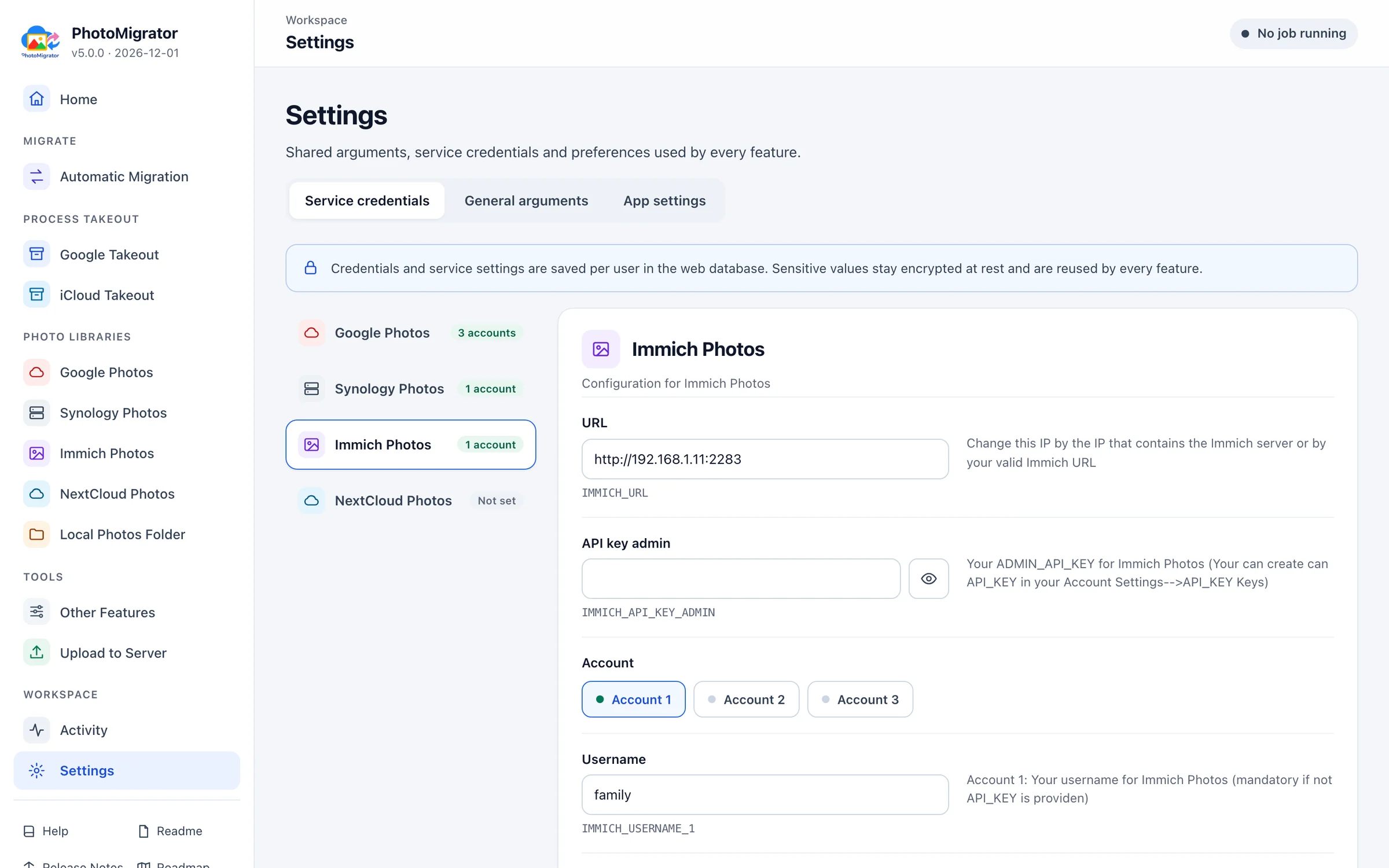
Everything else your library needs
Helpers for the folders on your disk, and one place for the credentials of every account, encrypted in the Web Interface.
- Find duplicates across folders, review them and apply your decisions
- Organize a folder by date and rename album folders from their content
- Repair broken album links after moving folders
- Import and export your configuration
Web, desktop, terminal or command line
The same features in four interfaces. Use the one that fits where your photos live.
In the browser, from Docker
Run it on your NAS or server and use it from any computer or phone. Multiple users, an admin panel, encrypted credentials and live progress.
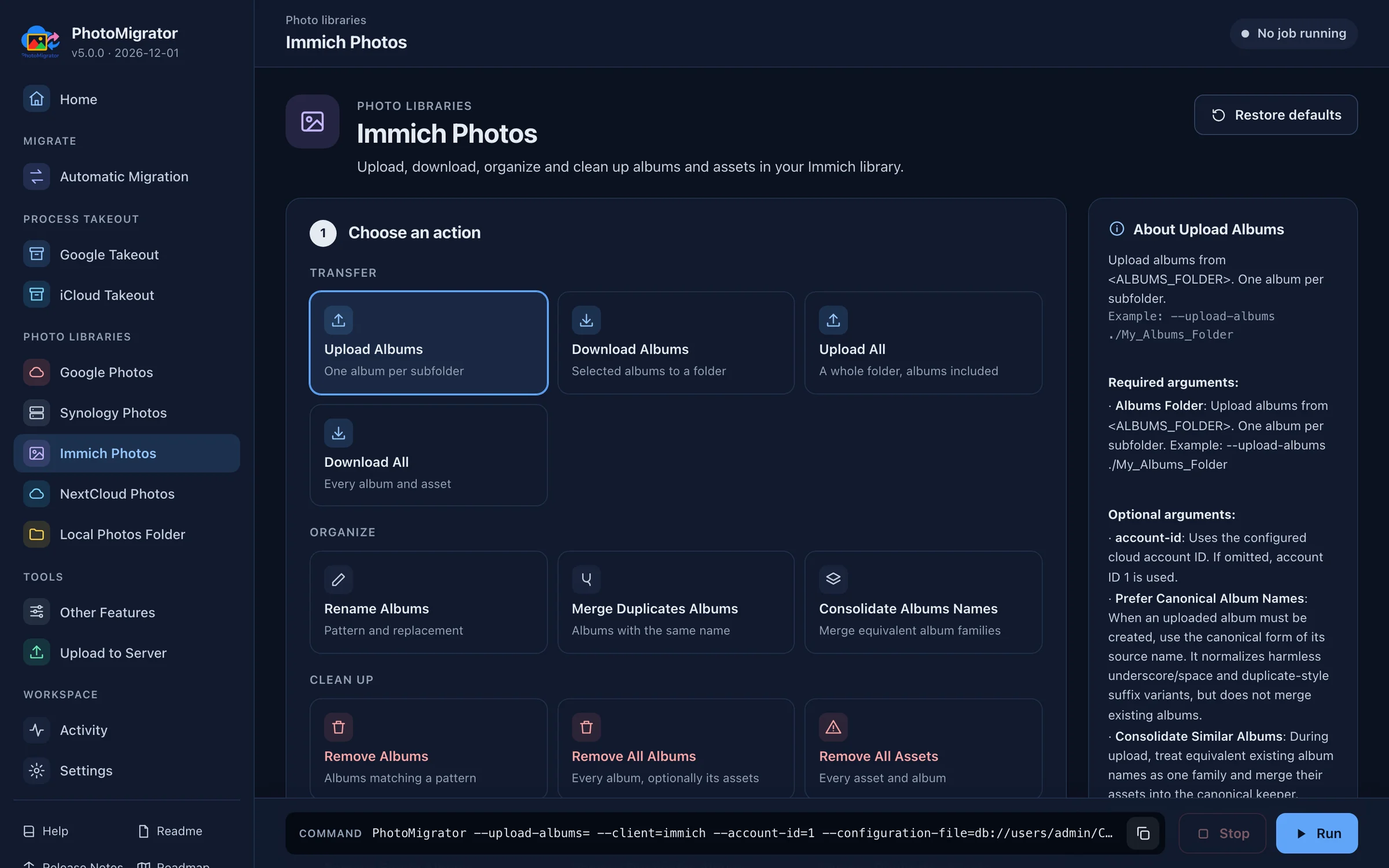
A full interface over SSH
A keyboard-driven terminal interface with the same features, ideal for headless servers and Docker consoles.
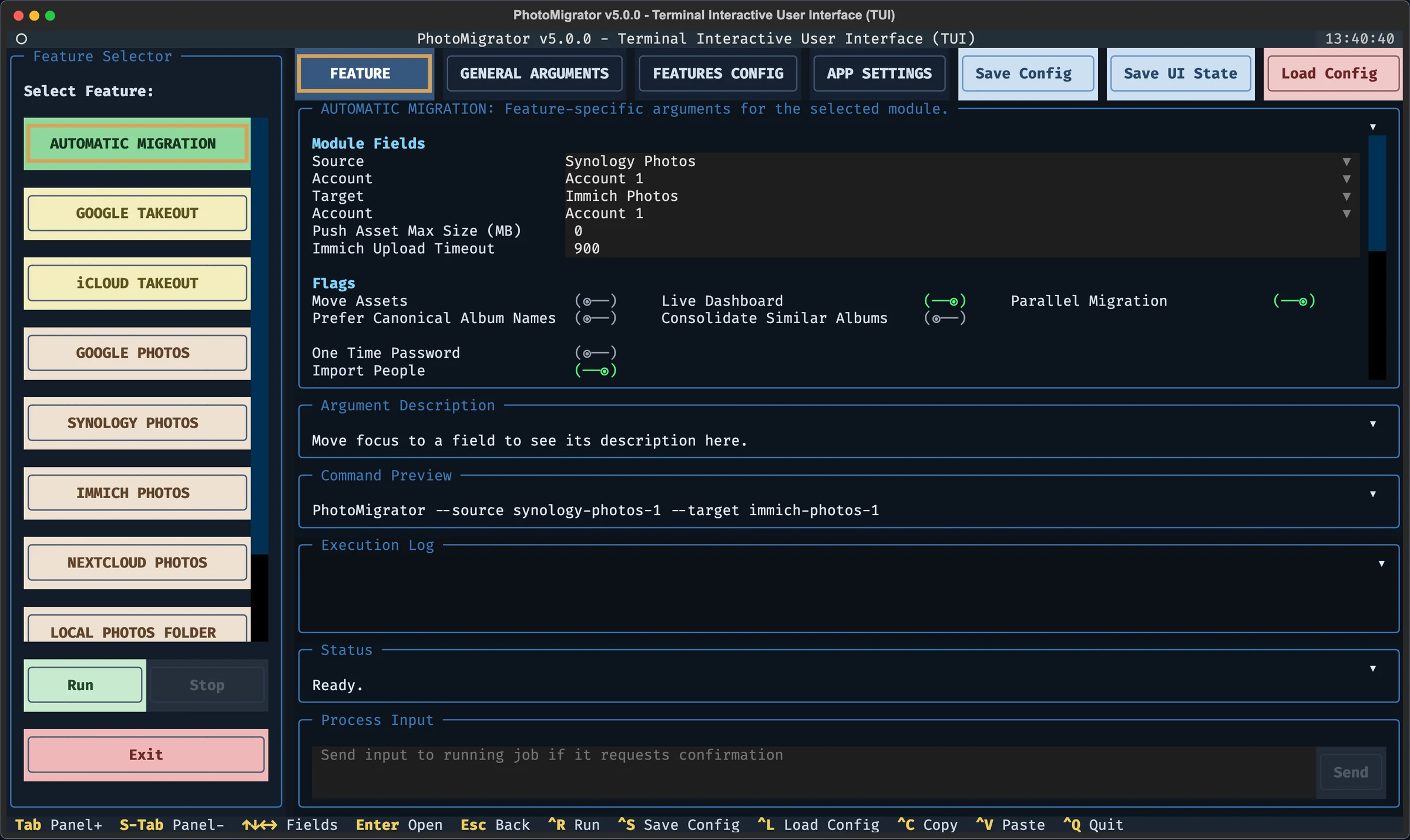
A native window
Double-click the app on Windows, macOS or Linux to open the desktop interface, with native folder pickers and a light or dark theme.
Scriptable, every option
Every feature is a command-line flag, so you can automate migrations and repeat them with the same settings.
Three steps, no surprises
Connect your services
Add the address and credentials of each account once. Up to three accounts per service.
Choose a task
Pick what you want to do. Only the fields that task needs are shown, with the defaults already set.
Run and follow it
Check the exact command, press Run and watch the progress and the log live, from any device.
Private by design
It runs on your own machine or NAS. Your photos go straight from one service to the other.
Live dashboard
Pull and push progress, queues, retries and estimated end time while a migration runs.
Safe by default
Destructive actions are marked in red and ask for confirmation. Copy is the default; move is your choice.
The exact command
Every screen shows the command it will run. Copy it to repeat the job or to put it in a script.
Built for big libraries
Parallel transfers, delayed retries and size limits for libraries with tens of thousands of photos.
Free and open source
GPL-3.0 licensed, developed in the open on GitHub with a friendly community on Discord.
Get PhotoMigrator v5.0.0
One download for your system, nothing to install. Unzip it and open the app, or run the Web Interface with Docker.
Run it on your NAS or server
Two files and one command. Then open http://localhost:6078 and sign in. The first admin account is created for you; change its password before you expose the service on your network.
Questions, answered
Is PhotoMigrator really free?
Yes. It is open source under the GPL-3.0 license, with no paid tiers, accounts or ads. You can read every line of code on GitHub.
Will I keep my albums, dates and locations?
Yes. Albums are recreated on the target, and when you start from a Google or iCloud Takeout the original date, GPS location and camera data are written back into each photo before it is migrated.
Can I migrate out of Google Photos?
Since April 2025 Google no longer lets third-party apps read your whole Google Photos library. Request a Google Takeout of your photos and use it as the source: PhotoMigrator fixes it and migrates it. Google Photos still works as a target.
Where do my photos go?
Only where you send them. PhotoMigrator runs on your own computer, NAS or server and talks directly to the services you configure. In the Web Interface, passwords and API keys are stored encrypted for each user.
Can I use more than one account?
Yes. Each service supports up to three accounts, so you can also migrate between two accounts of the same service, for example from one Immich user to another.
What happens if a migration is interrupted?
Uploads that fail are retried, and assets that keep failing are kept aside and listed so you can review them. You can run the migration again with the same settings by copying its command.
Which interface should I use?
On a NAS or server, the Web Interface with Docker. On your own computer, the desktop app. Over SSH, the terminal interface. For automation, the command line with PhotoMigrator --help.
Your memories, wherever you want them
Download PhotoMigrator, connect your services and move your whole library in a single run.